
Themes
Themes is where the board's looks are decided, and the split between the two dropdowns is what the whole arrangement is built around.
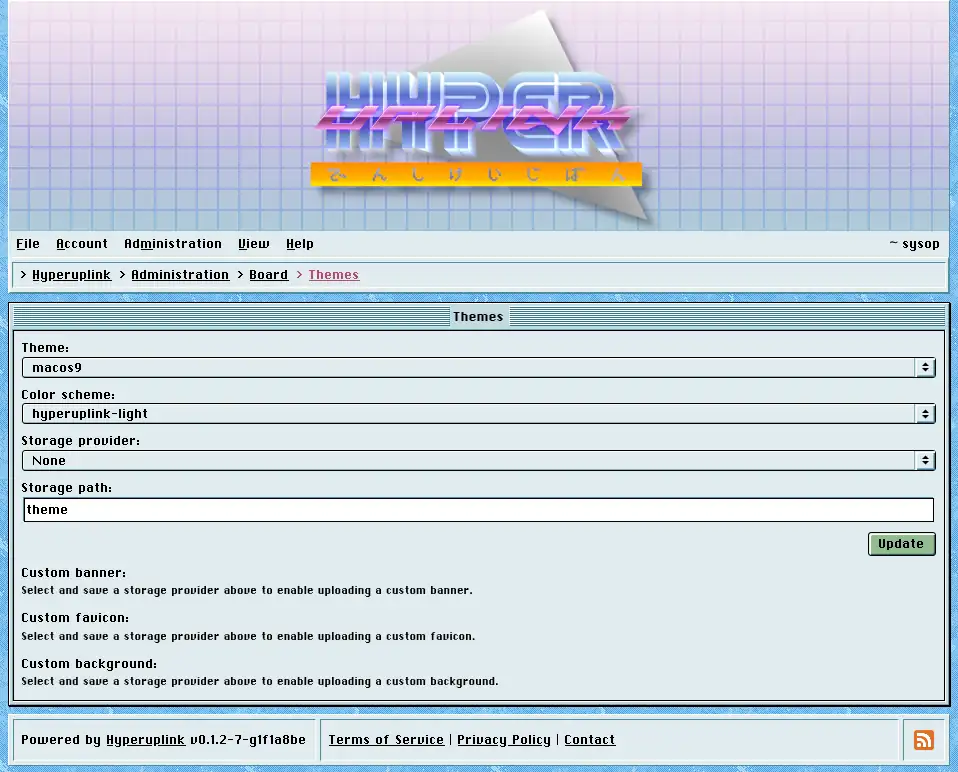
Theme and colorscheme
A theme decides what a window, a button, a menu and a scrollbar look like, and the board ships with a number of them: macos9, win3x, win9x, winxp, cde, and several that aren't trying to look like anything from 1998 at all.
A colorscheme decides what all of that is painted in, and it is picked separately, hence a macOS 9 board in Gruvbox is a thing you can have, whether or not it's a thing you should have. A board with nothing picked runs macos9 in hyperuplink-light, which is what the screenshots throughout this manual use.
Both apply to everyone, since this is the board's appearance rather than a per-account preference. What each reader does control for themselves is the View menu, meaning the banner, the footer and the profile pictures.
Custom banner, favicon and background
The three upload fields replace the board's stock banner, its favicon and the tiled desktop background behind the windows.
All three need a storage provider and a storage path first, and the page shows a message until you've picked and saved one, because a file has to go somewhere before it can be uploaded. The providers come from the board's configuration file.
One of each may be set at a time, and uploading a replacement means removing what's there first. Remove puts the stock article back rather than leaving you with nothing.
The page itself: Administration → Board Settings → Themes
